When I watch Netflix on my Windows laptop, I often change the playback speed.
Netflix has a speed menu, but changing the speed means reaching for the mouse, opening the menu, and choosing a value again.
I had already solved a similar annoyance with Laftel Mania, so I thought two shortcuts would be enough this time as well. (Netflix opens the player in a large window by default.)
My first attempt controlled the video directly
The first version found the video element, changed its playbackRate directly, and saved the last speed for the next video.
The shortcuts and on-screen notice worked, but actual playback revealed an obvious loss of sync between the picture and sound.
In the end, I used Netflix’s built-in speed menu
I removed the direct speed control and made the shortcuts operate the playback-speed menu already provided by the Netflix player.
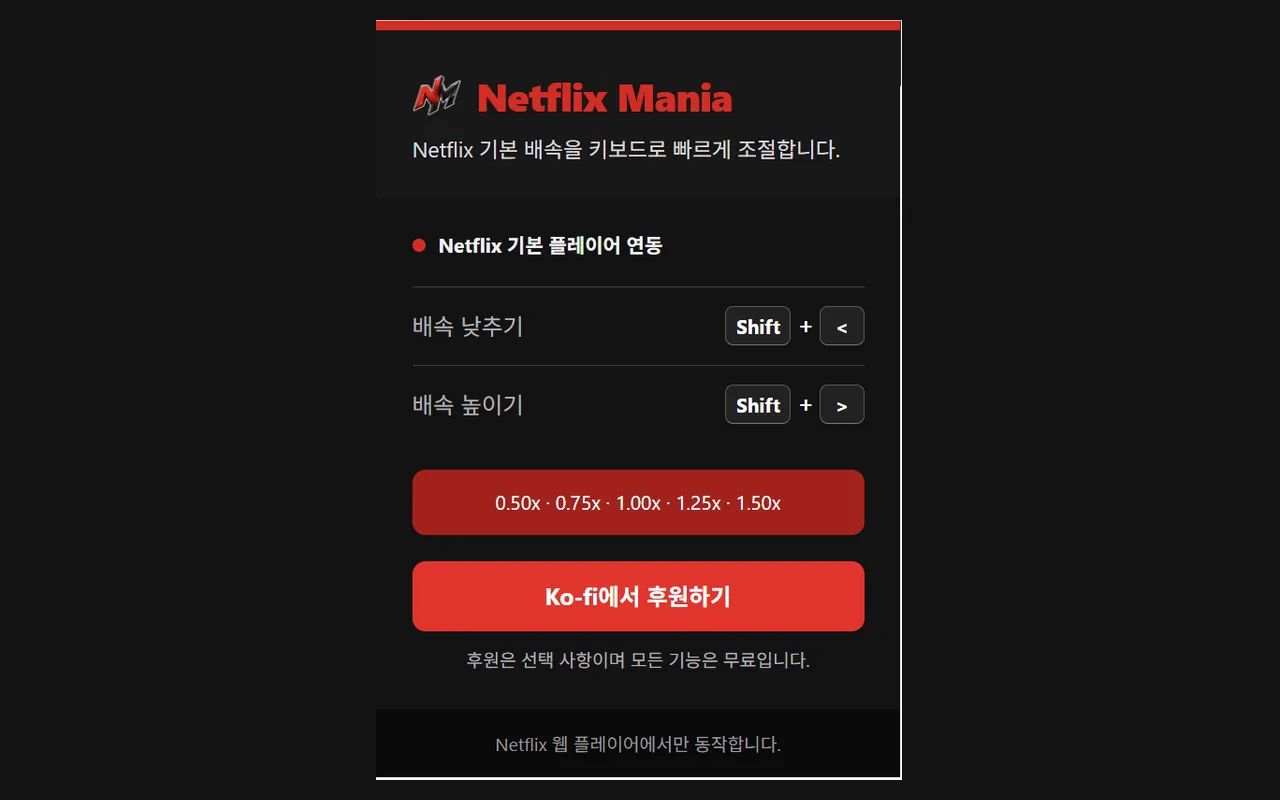
The five supported steps match that menu: 0.50x, 0.75x, 1.00x, 1.25x, and 1.50x.
Shift + < moves down one step, Shift + > moves up one step, and the speed stays put at either end.
Because this approach follows Netflix’s own playback flow, it also avoids the sync problem caused by direct control.
One final click closes the menu
After a shortcut selected a speed, the Netflix speed menu still remained on screen.
I first expected the speed button to close it, but the player behaved differently, and I found that one click in the middle of the screen dismissed the menu naturally.
The final sequence opens the speed menu, chooses the next value, clicks the centre of the screen to close the menu, and shows the current speed for two seconds.
The shortcuts also work while typing Korean
While a Korean input method is active, the browser can report a pressed character as Process, so I used the physical Comma and Period key codes instead.
This keeps Shift + < and Shift + > working as the same playback-speed shortcuts while Korean input is active.
A popup with only what is needed
I reused Laftel Mania’s compact popup structure, then adapted it with Netflix-inspired red and black colours and the new NM icon.
Playback speed is the extension’s only feature, so the popup explains only how to use the two shortcuts.
No data is stored or transmitted
Netflix Mania does not collect account details, viewing history, browsing history, or page content, and it does not send data to a separate server.
It does not even store the last playback speed, and the privacy policy explains the details.
Netflix Mania is an unofficial extension and is not created, approved, endorsed, or affiliated with Netflix.
The current version is 1.2.2 and is available to install from the Chrome Web Store.
In one line: If changing video speed directly breaks audio sync, controlling the site's native playback-speed menu with shortcuts is more reliable.